Quick Crash Course: Difference between revisions
m (→How to Probe: link) |
mNo edit summary |
||
| (65 intermediate revisions by 2 users not shown) | |||
| Line 4: | Line 4: | ||
Games usually take between 30 minutes to an hour. | Games usually take between 30 minutes to an hour. | ||
'''[[Allegopedia|If you're looking for detailed information on ships, weapons, and bases, see the Allegopedia]]''' | |||
__TOC__ | __TOC__ | ||
| Line 10: | Line 13: | ||
The objective of the game is simple: destroy (or [[Troop_transport|capture]]) all enemy [[tech base]]s. | The objective of the game is simple: destroy (or [[Troop_transport|capture]]) all enemy [[tech base]]s. | ||
To accomplish this, you must first expand across the map with your own [[base]]s, while at the same time researching superior [[weapons]] and [[Cadet_I/Technology_paths|technology]] to overwhelm the enemy. Both of these tasks require money, which is generated by special non-player ships called [[miner]]s harvesting a resource called "Helium 3" (or He3) from [[asteroid]]s. Much of the game revolves around finding and destroying enemy miners, while protecting your own. | To accomplish this, you must first expand across the map with your own [[base]]s, while at the same time researching superior [[weapons]] and [[Cadet_I/Technology_paths|technology]] to overwhelm the enemy. Both of these tasks require money, which is generated by special non-player ships called [[miner]]s harvesting a resource called [[Helium-3|"Helium-3" (or He3)]] from [[asteroid]]s. Much of the game revolves around finding and destroying enemy miners, while protecting your own. | ||
[[File:Ic-miner.jpg|thumb|right|[[Iron Coalition]] [[miner]] ]] | [[File:Ic-miner.jpg|thumb|right|[[Iron Coalition]] [[miner]] ]] | ||
| Line 28: | Line 31: | ||
{{Note|Sometimes you may log on to Allegiance and there will be lots of people in the lobby, but no game going. Please be patient! There is usually some downtime between games as players want to discuss the previous game, get a snack, change teams, etc.}} | {{Note|Sometimes you may log on to Allegiance and there will be lots of people in the lobby, but no game going. Please be patient! There is usually some downtime between games as players want to discuss the previous game, get a snack, change teams, etc.}} | ||
{{Tip|If there aren't many people online, or you want to test things out on your own, you can [[Creating_a_One-Sided_Game|create your own game]]. | {{Tip|If there aren't many people online, or you want to test things out on your own, you can [[Creating_a_One-Sided_Game|create your own game]]. Games often take place on US evenings on weekdays, however the main game day is Sunday.}} | ||
=== How to Communicate === | === How to Communicate === | ||
| Line 35: | Line 38: | ||
{{Tip | To send a private message to someone, type the first few letters of their name, followed by {{k|Tab}}.}} | {{Tip | To send a private message to someone, type the first few letters of their name, followed by {{k|Tab}}.}} | ||
You can also send short radio messages via the Voice Chat menu, which is accessed via the {{k| | You can also send short radio messages via the Voice Chat menu, which is accessed via the {{k|`}} key (next to {{k|1}}). | ||
Through the course of the game you will frequently see the commander (or sometimes other players) issuing you orders in bright red text which can be "accepted" with the {{k|INS}} key. '''You can safely ignore most of these orders''' for the time being because the vast majority are not for you, but for your teammates in distant sectors. Once you get more accustomed to the game these orders will be very important for team coordination — but since you are new, don't worry about them right now. | Through the course of the game you will frequently see the commander (or sometimes other players) issuing you orders in bright red text which can be "accepted" with the {{k|INS}} key. '''You can safely ignore most of these orders''' for the time being because the vast majority are not for you, but for your teammates in distant sectors. Once you get more accustomed to the game these orders will be very important for team coordination — but since you are new, don't worry about them right now. | ||
{{Tip | You can scroll the chat by pressing {{k|Page Up}} and {{k|Page Down}} }} | {{Tip | You can scroll the chat by pressing {{k|Page Up}} and {{k|Page Down}} }} | ||
{{Tip | Veteran players are prone to using [[Common_Abbreviations|a lot of abbreviations for in-game terms]].}} | |||
== What, where, and how to fly around== | == What, where, and how to fly around== | ||
| Line 45: | Line 49: | ||
The [[scout]] is an excellent beginner ship. Scouts are very fast and have excellent sensors which allow you to spot most enemies coming towards you. Scouts have low hp and won't last long in a dogfight — but that's okay. It takes a while to learn good dogfighting techniques in Allegiance and you should try to avoid or escape conflict as a new player. | The [[scout]] is an excellent beginner ship. Scouts are very fast and have excellent sensors which allow you to spot most enemies coming towards you. Scouts have low hp and won't last long in a dogfight — but that's okay. It takes a while to learn good dogfighting techniques in Allegiance and you should try to avoid or escape conflict as a new player. | ||
How to choose a scout? Once you're on a team and the game has started, you will see the station interior. Open the "Ship's loadout" menu by clicking the console for it, or pressing {{k|F4}}. Here you can use the drop-down menu to select the scout. Hit the launch button and away you go! | How to choose a scout? Once you're on a team and the game has started, you will see the station interior. Open the "Ship's loadout" menu by clicking the console for it, or pressing {{k|F4}}. Here you can use the drop-down menu to select the scout. Hit the launch button and away you go! {{Note|The "Confirm Change" button is only needed if you switch to other windows before pressing "Launch".}} | ||
{{Note|The | |||
===Space Flight=== | |||
{{Warning|This guide assumes you use the new default keybindings. You can switch to them in the menu {{k|Esc}} → Game {{k|G}} → Map Keys and Controls {{k|C}}. By selecting "Restore Defaults" and then "Accept".}} | |||
You turn your ship with the mouse (or joystick). It can however only turn so fast and, since your mouse is simulating a joystick here, you have to move it back to the center to stop rotating. This takes some getting used to, but has the advantage that you can keep track of a moving target, without having to move your mouse over the edge of your desk. | |||
{{Tip|Set your mouse sensitivity, so you have the precision necessary to stop your ship from turning. This can be done in the menu {{k|Esc}} → Game {{k|G}} → Mouse Options {{k|Q}}.}} | |||
{{Warning|The game has two mouse modes. If your cursor is visible, you can use it to check the minimap and the like. Hit {{k|Tab}} to toggle the mouse mode and control your ship.}} | {{Warning|The game has two mouse modes. If your cursor is visible, you can use it to check the minimap and the like. Hit {{k|Tab}} to toggle the mouse mode and control your ship.}} | ||
Go ahead, fly some circles and try out these basic controls: | |||
{{center|'''''Basic controls:}} | {{center|'''''Basic controls:}} | ||
| Line 56: | Line 65: | ||
|- | |- | ||
| Set speed || Mousewheel up/down | | Set speed || Mousewheel up/down | ||
|- | |||
| Target enemy || {{k|T}} | |||
|- | |||
| Target center of screen || Middle mouse button | |||
|- | |- | ||
| Fire gun || Left mouse button | | Fire gun || Left mouse button | ||
|- | |- | ||
| Fire missile || Right mouse button | | Fire missile || Right mouse button | ||
|- | |- | ||
| Deploy sensor probe || {{k|C}} | | Deploy sensor probe || {{k|C}} | ||
|} | |} | ||
{{Tip|[http://www.freeallegiance.org/FAW/images/e/ec/AllegKeys.png A complete overview of all the keys can be found here.]}} | {{Tip|[http://www.freeallegiance.org/FAW/images/e/ec/AllegKeys.png A complete overview of all the keys can be found here.] or by pressing {{k|F1}} in game.}} | ||
{{Warning|Your controls may be set up differently. If the commands above don't seem to work, check in the menu {{k|Esc}} | <!--{{Warning|Your controls may be set up differently. If the commands above don't seem to work, check in the menu {{k|Esc}} → Game {{k|G}} → Map Keys and Controls {{k|C}} }}--> | ||
=== The HUD === | |||
<div class="thumbinner" style="width:750px; margin: auto;"><div style="float:left;">[[Image:AllegHUDDetails.png|center]]</div> <div class="thumbcaption" style="overflow:hidden;">Space - as seen from the [[scout]]'s cockpit.<BR> | |||
The targeted [[outpost]] constructor, on the right, is at a distance of 158m. The two bars, below its distance, show he is at full shield and armor.</div></div> | |||
The labeled bars give information about: | |||
*Thrust - controlled with your mousewheel | |||
*Ammo | |||
*Fuel - used in [[Other_equipment|boosters]] | |||
*Energy - used for some [[weapons]] and cloaking | |||
*Shield - regenerating hitpoints | |||
*Armor - hitpoints {{Note|In a scout you don't usually have to worry about fuel or energy.}} | |||
The ship's current speed is displayed in the lower center. | |||
<!--Below that is your signature radius. The higher the value, the easier you are to spot. It depends on the ship type and the equipped modules. If you fire a gun, or use afterburners, it will greatly increase.--> | |||
Notice the white brackets { }, which are usually in the center of your screen. This is the motion indicator, telling you the direction your ship moves in. If you make a sharp turn or perform other maneuvers, it can vary greatly from the direction your ship is facing. | |||
If you lock a target, it will have square brackets around it. There is an arrow pointing towards it, allowing you to turn towards your target, even if it is not in your field of view. | |||
{{Tip|If you have a waypoint set, there will be two arrows: A green one pointing to the waypoint, and a red one pointing to the target.}} | |||
=== The Minimap === | |||
<div class="thumbinner" style="width:219px; float: right;"><div>[[Image:AllegMinimapMercor.png|center]]</div> <div class="thumbcaption">The minimap. There are two [[scout]]s, a [[fighter]], a [[teleport receiver]], and a [[Garrison]] in the Mercor sector. | |||
On the right side it shows the amount of [[Helium-3]] available. The colored [[asteroid]] can be used to build a specific [[tech base]] on. The white asteroids contain Helium-3. The are also 4 probes deployed in the sector.</div></div> | |||
At the | At the bottom left of your screen there should be a little map that looks like the one on the right. If it is not there, hit {{k|F7}} to bring it up. This is a map of the game universe. The circles represent different sectors - areas of space with asteroids, helium, and players. The lines indicate wormholes (also called "[[aleph]]s") that connect the sectors. The different colours and icons displayed on the map tell players more information, such as who has a base in the sector, what type of friendly ships and (visible) enemies are there, etc. | ||
The sector you are in is marked with a yellow triangle above it. You can hover your mouse over the map to get information about the other sectors (toggle mouse control with {{k|Tab}}). | |||
There are [[Cadet I/Minimap icons|lots of symbols]] that can appear on the minimap. Here are a few of the most important ones: | There are [[Cadet I/Minimap icons|lots of symbols]] that can appear on the minimap. Here are a few of the most important ones: | ||
{| border=1 cellpadding=5 cellspacing=0 align="center" style="text-align:center" | {| border=1 cellpadding=5 cellspacing=0 align="center" style="text-align:center" | ||
|[[Base]] || [[Image:Dn hsgarbmp.PNG]] [[Image:Dn hsoutbmp.PNG]] | |[[Cadet_I/Technology_paths|Tech Base]] || [[Image:Dn hsgarbmp.PNG]] [[Image:AllegIconGarrUpgraded.png]] | ||
|- | |||
| [[Outpost]] || [[Image:Dn hsoutbmp.PNG]] | |||
|- | |- | ||
|[[Teleport receiver]] | |[[Teleport receiver]]|| [[Image:Apb tp std.jpg]] | ||
|- | |- | ||
|[[Constructor]] ( | |[[Constructor]] (builds on an asteroid) || [[Image:Dn hicsmbmp.png]] [[Image:Dn hicsmenhbmp.png]] [[Image:Dn hicsmadvbmp.png]] | ||
|- | |- | ||
|[[Miner]] || [[Image:Dn himnrbmp.png]] | |[[Miner]] || [[Image:Dn himnrbmp.png]] | ||
| Line 94: | Line 122: | ||
|[[Bomber]] || [[Image:Dn hibmbbmp.PNG]] | |[[Bomber]] || [[Image:Dn hibmbbmp.PNG]] | ||
|- | |- | ||
|[[Eject pod]] ( | |[[Eject pod|Escape pod]] (ejected pilot) || [[Image:Ap lifepod.jpg]] | ||
|} | |} | ||
=== How to Move Around the Map === | === How to Move Around the Map === | ||
To get from one sector to another, there are several methods: | To get from one sector to another, there are several methods: | ||
* '''Fly there''': The normal way of getting around, especially when scouting. Fly into an [[aleph]] and you will be spat out on the other side. | * '''Fly there''': The normal way of getting around, especially when scouting. Fly into an [[aleph]] and you will be spat out on the other side.{{Note|Clicking on a sector on the minimap will enable the autopilot to move there. It can be disabled by pressing any movement key and toggled with {{k|P}}.}} | ||
* '''Teleport there''': If there is a [[teleport receiver]] [[Image:Apb tp std.jpg]] in the sector, you can click on the sector in the minimap to ripcord there. | |||
* '''Teleport there''': If there is a [[teleport receiver]] [[Image:Apb tp std.jpg]] in the sector, you can click on the sector in the minimap to teleport (aka ripcord) there. | |||
* '''Dock and transfer there''': If flying there takes too long and there's a [[base]] but no [[teleport receiver]] in the sector, then the smartest thing to do is to dock at the closest [[base]] and use the teleport console {{k|F7}} to transfer to the sector. | * '''Dock and transfer there''': If flying there takes too long and there's a [[base]] but no [[teleport receiver]] in the sector, then the smartest thing to do is to dock at the closest [[base]] and use the teleport console {{k|F7}} to transfer to the sector. | ||
**The minimap will show up, along with a list of bases and their location. | **The minimap will show up, along with a list of bases and their location. | ||
**You can either select the base you want and transfer, or click on the sector on the minimap. Using the minimap is faster, but if there is more than one base you may end up in the wrong one. | **You can either select the base you want and transfer, or click on the sector on the minimap. Using the minimap is faster, but if there is more than one base you may end up in the wrong one. | ||
<div class="thumbinner" style="width:420px; float: right;"><div>[[Image:AllegCommandView.png|center|420px]]</div> <div class="thumbcaption">This is what your command view might look like. The symbols on the bottom allow giving non-standard orders.</div></div> | |||
=== The Command View === | |||
Pressing {{k|F3}} will open a top-down view of the current sector. This view is good to get an overview of the situation and plan a route. | |||
You can set a waypoint for yourself, by right clicking a spot. The autopilot will enable and move there.{{Note|You can set the waypoint at a different height, by holding the right mouse button and moving the mouse before releasing it.}} | |||
{{Tip|Select other units with a click or a dragged box. Now you can send chat just to them, or set them waypoints/orders with a right-click. If other people give you orders, you can accept them with {{k|Insert}}.}} | |||
{{Tip|When in base you can look at any sector by clicking it on the minimap.}} | |||
Controls: Zoom with your mousewheel, move the view by moving the mouse to the edges. | |||
==Helping your team== | ==Helping your team== | ||
=== | === Probing === | ||
One way to immediately be useful to your team is to deploy sensor probes (Early Warning System, or EWS probes) using your scout. Without probes in enemy-held or neutral sectors, you won't be able to see the enemy and know what's going on. The enemy will be able to build bases, mine freely, and organize giant bomb runs without your team's knowledge. | One way to immediately be useful to your team is to deploy sensor probes (Early Warning System, or EWS probes) using your scout. Without probes in enemy-held or neutral sectors, you won't be able to see the enemy and know what's going on. The enemy will be able to build bases, mine freely, and organize giant bomb runs without your team's knowledge. | ||
| Line 119: | Line 159: | ||
Locate the dispensor slot on the right-hand side and make sure it contains a probe. Then locate the cargo area a bit further down. Fill '''all''' slots with probes. Then launch and head out to your destination. | Locate the dispensor slot on the right-hand side and make sure it contains a probe. Then locate the cargo area a bit further down. Fill '''all''' slots with probes. Then launch and head out to your destination. | ||
{{Tip|You can save a ship loadout by pressing {{k|Ctrl-1}} and restore it quickly with {{k|1}}. Other number keys work too.}} | |||
Places that should be probed are: | Places that should be probed are: | ||
| Line 135: | Line 176: | ||
* Don't stray too far from base! If you do get [[podded]], it may be a long, long walk home.}} | * Don't stray too far from base! If you do get [[podded]], it may be a long, long walk home.}} | ||
=== | === Repairing Ships === | ||
Scouts are almost the only ship that can repair others. By repairing other ships when they come under attack a scout can greatly increase their lifespan, making them much more likely to succeed. Normally you escort bombers entering enemy sectors, or constructors and miners as they move around the map. | Scouts are almost the only ship that can repair others. By repairing other ships when they come under attack a scout can greatly increase their lifespan, making them much more likely to succeed. Normally you escort bombers entering enemy sectors, or constructors and miners as they move around the map. | ||
| Line 161: | Line 202: | ||
{{Note|The nan can <u>not</u> repair shields (the top health bar). Save your shots for when the shields are low.}} | {{Note|The nan can <u>not</u> repair shields (the top health bar). Save your shots for when the shields are low.}} | ||
{{Tip|If you are carrying ''both'' prox mines and probes, use {{k|Ctrl- | {{Tip|If you are carrying ''both'' prox mines and probes, use {{k|Ctrl-0}} to switch between them.}} | ||
Momma didn't raise no fools on the enemy's team, however. Savvy players know there's no sense attacking a bomber when there are scouts ready to repair it. Instead, they'll start shooting at YOU. The life of a bomber nan is nasty, brutish, and short. But if it keeps the bomber alive even five extra seconds, it's often quite worth it. When you see through the grungy window of your pod the enemy base exploding in a ball of flame, you can take pride that it couldn't have happened without '''your''' help. | Momma didn't raise no fools on the enemy's team, however. Savvy players know there's no sense attacking a bomber when there are scouts ready to repair it. Instead, they'll start shooting at YOU. The life of a bomber nan is nasty, brutish, and short. But if it keeps the bomber alive even five extra seconds, it's often quite worth it. When you see through the grungy window of your pod the enemy base exploding in a ball of flame, you can take pride that it couldn't have happened without '''your''' help. | ||
| Line 167: | Line 208: | ||
{{Note|When the tables are turned and you're defending against an enemy bomber, you should be a savvy player and shoot the enemy nans, not the bomber!}} | {{Note|When the tables are turned and you're defending against an enemy bomber, you should be a savvy player and shoot the enemy nans, not the bomber!}} | ||
{{Tip|Sitting with your team's miners and defending them when attacked works very much the same way as defending bombers, and is every bit as helpful to the team.}} | {{Tip|Sitting with your team's miners and defending them when attacked works very much the same way as defending bombers, and is every bit as helpful to the team.}} | ||
{{Tip|The [[Training_missions|training mission]] "7. Support Role I (Nanning)" is all about this.}} | |||
=== Exploration === | |||
When a game starts, each team only knows their home sector. All other sectors have yet to be discovered. Exploring those sectors quickly, allows your commander to make a good decision on what to build where.{{Note|As a loadout for exploring, you want to bring a [[Nan|nan]] to repair constructors. The rest of the slots, you can fill with probes, dumbfire [[missiles]] to attack enemy [[constructor]]s/[[miner]]s and, possibly [[Cadet_PRS_Proximity_Mines|prox]].}} | |||
Choose one of the [[aleph]]s leading to unknown space. Ideally you check for other scouts in the command view {{k|F3}} so you are evenly spread out. | |||
Once you are in a new sector, the task is to find the other [[aleph]]s. They tend to be arranged in geometric shapes. If there are three alephs in a sector, they will be arranged in a rough triangle. If there are four alephs, they will be arranged in a rectangle. And so on. Therefore you want to look at the map configuration before the match starts and remember the aleph counts. It can still be hard to find them, as it is not an exact science. | |||
{{Tip|Killing a constructor with a scout is quite hard to do. Best ask for help when you find one with the voice command {{k|~}}→{{k|A}}→{{k|C}}. You can delay the constructor from building, by ramming its nose or tail when it tries to line up with an asteroid.}} | |||
Sometimes there are pieces of technology floating out in space: [[Image:Icontechbmp.PNG]]. If you [[Cadet I/Floating technology|pick up this tech]] and bring it home, | === Picking up Tech and Cashboxes === | ||
Sometimes there are pieces of technology floating out in space: [[Image:Icontechbmp.PNG]]. If you [[Cadet I/Floating technology|pick up this tech]] and bring it home, your entire team can start using it, if you have the required bases. | |||
Not all tech is very useful, however. When a piece of tech is far out of your way, ask your team first if it is worth picking up. | Not all tech is very useful, however. When a piece of tech is far out of your way, ask your team first if it is worth picking up. | ||
In order to pick up tech, you need to have empty cargo space. You can see your ship's equipment and cargo in the bottom right (unless it has been toggled off with {{k|F4}}). Below the numbered equipment is your cargo. If you don't see an empty slot, use {{k|,}} to cycle through your cargo, and {{k|Ctrl-,}} to eject an item. Alternatively, dropping a prox mine or probe | In order to pick up tech, you need to have empty cargo space. You can see your ship's equipment and cargo in the bottom right (unless it has been toggled off with {{k|F4}}). Below the numbered equipment is your cargo. If you don't see an empty slot, use {{k|,}} to cycle through your cargo, and {{k|Ctrl-,}} to eject an item. Alternatively, dropping a prox mine or probe will open up a cargo slot. | ||
Another symbol you will see floating in space is the cashbox: [[Image:Cashiconbmp.PNG]]. Picking this up, gives your commander $500 more to invest with. Be sure to pick up cashboxes if you see them on your route.{{Note|The powerup: [[Image:Iconpubmp.PNG]] repairs your hull and replenish your ammo and fuel bars.}} | |||
=== Rescuing pilots === | |||
Even the best pilots will be forced to eject at times. The journey back in an escape pod: [[Image:Ap lifepod.jpg]] takes the pilot out of the fight for quite a while. | |||
Picking them up will send them back to base and allow them to launch another ship. So, if you see a pod and aren't getting shot at, tell them to come to you. To do this, select them in the command view {{k|F3}} and send them the voice command {{k|~}}→{{k|C}}→{{k|S}}. (You can also send the voice command without selecting anyone, but that broadcasts it to the whole team and other pods might be confused.) Then fly towards them without turning too much, so you can meet up. | |||
{{Tip|If there are several pilots stranded far from your bases, it may be a good idea to launch a ship just to rescue them.}} | |||
{{Tip|Destroying an enemy pod, lowers their damage, but also sends them back to base immediately. So usually you don't want to do this.}} | |||
== What's Next == | == What's Next == | ||
With this introduction, you have the ability to be a great support for your team and help win games! If anything didn't make sense, please join us on [https://discord.gg/wR3xcEe Discord] and ask. | |||
There is still much to learn. Allegiance is a very complex game, with a [[Complex learning curve|steep learning curve]]. | |||
* Get in touch with the community on [https://discord.gg/wR3xcEe Discord] for help, voice chat, and more. | * Get in touch with the community on [https://discord.gg/wR3xcEe Discord] for help, voice chat, and more. | ||
* | * [[Combat|Learn how to fight!]] | ||
* Watch other people do it in our [[Training_multimedia|training videos]]. | * Watch other people do it in our [[Training_multimedia|training videos]]. | ||
* Sign up for [[Allegiance Flight School]], a structured course for new players. | * Sign up for [[Allegiance Flight School]], a structured course for new players. | ||
Latest revision as of 22:59, 12 June 2018
Welcome to the best game you've never played!
Allegiance is a team-based strategy game set in space, with players piloting the spacecraft. It's like playing, say, StarCraft, except that every individual unit is controlled by a real human player.
Games usually take between 30 minutes to an hour.
If you're looking for detailed information on ships, weapons, and bases, see the Allegopedia
Objective of the Game

The objective of the game is simple: destroy (or capture) all enemy tech bases.
To accomplish this, you must first expand across the map with your own bases, while at the same time researching superior weapons and technology to overwhelm the enemy. Both of these tasks require money, which is generated by special non-player ships called miners harvesting a resource called "Helium-3" (or He3) from asteroids. Much of the game revolves around finding and destroying enemy miners, while protecting your own.

Each team is led by a commander. He receives all the money generated by miners and is in charge of buying bases and technology, as well as coordinating the team around specific objectives. Most small-class ships are free and you can fly them as much as you like, but some of the more mission-critical ones are not. To pilot these ships, you must request money from the commander and he may deny that request if, for example, he is saving to buy something else, wants a more skilled player to fly it, or doesn't believe that ship will be effective at this stage of the game.
Joining in
Joining a Team
When you log on to Allegiance, there may already be a game going. If the upper right hand corner displays "Time elapsed" along with a counter, the game is already underway! All you have to do is join a team.
But which team should you join? Take a look at each team's tab. They will look something like this:

What this means is that there are 6 people out of a possible 100 on Team 2, which is fighting for the Iron Coalition faction. Every player has a rank from 0 to 25 and the [17] is the total rank of all the players on the team.
As a new player, you want to join the team with the higher total rank to keep both sides as balanced as possible. If your name is blinking in the player list, it means the commander still has to accept you into his team.

Note Sometimes you may log on to Allegiance and there will be lots of people in the lobby, but no game going. Please be patient! There is usually some downtime between games as players want to discuss the previous game, get a snack, change teams, etc.


Tip: If there aren't many people online, or you want to test things out on your own, you can create your own game. Games often take place on US evenings on weekdays, however the main game day is Sunday.

How to Communicate

To talk to your teammates, begin by pressing Enter. This brings up a dialog window with two boxes. The one on the left indicates who will receive your message (such as 'Team 1', 'Command', 'All') and the one on the right is where you type your message. To change the recipient of your message, press Tab.
Tip: To send a private message to someone, type the first few letters of their name, followed by Tab.
You can also send short radio messages via the Voice Chat menu, which is accessed via the ` key (next to 1).
Through the course of the game you will frequently see the commander (or sometimes other players) issuing you orders in bright red text which can be "accepted" with the INS key. You can safely ignore most of these orders for the time being because the vast majority are not for you, but for your teammates in distant sectors. Once you get more accustomed to the game these orders will be very important for team coordination — but since you are new, don't worry about them right now.
Tip: You can scroll the chat by pressing Page Up and Page Down
Tip: Veteran players are prone to using a lot of abbreviations for in-game terms.
What, where, and how to fly around
Your First Ship: The Scout

The scout is an excellent beginner ship. Scouts are very fast and have excellent sensors which allow you to spot most enemies coming towards you. Scouts have low hp and won't last long in a dogfight — but that's okay. It takes a while to learn good dogfighting techniques in Allegiance and you should try to avoid or escape conflict as a new player.
How to choose a scout? Once you're on a team and the game has started, you will see the station interior. Open the "Ship's loadout" menu by clicking the console for it, or pressing F4. Here you can use the drop-down menu to select the scout. Hit the launch button and away you go!
Note The "Confirm Change" button is only needed if you switch to other windows before pressing "Launch".
Space Flight

Warning! This guide assumes you use the new default keybindings. You can switch to them in the menu Esc → Game G → Map Keys and Controls C. By selecting "Restore Defaults" and then "Accept".

You turn your ship with the mouse (or joystick). It can however only turn so fast and, since your mouse is simulating a joystick here, you have to move it back to the center to stop rotating. This takes some getting used to, but has the advantage that you can keep track of a moving target, without having to move your mouse over the edge of your desk.
Tip: Set your mouse sensitivity, so you have the precision necessary to stop your ship from turning. This can be done in the menu Esc → Game G → Mouse Options Q.
Warning! The game has two mouse modes. If your cursor is visible, you can use it to check the minimap and the like. Hit Tab to toggle the mouse mode and control your ship.
Go ahead, fly some circles and try out these basic controls:
| Basic controls: |
| Toggle mouse control | Tab |
| Set speed | Mousewheel up/down |
| Target enemy | T |
| Target center of screen | Middle mouse button |
| Fire gun | Left mouse button |
| Fire missile | Right mouse button |
| Deploy sensor probe | C |
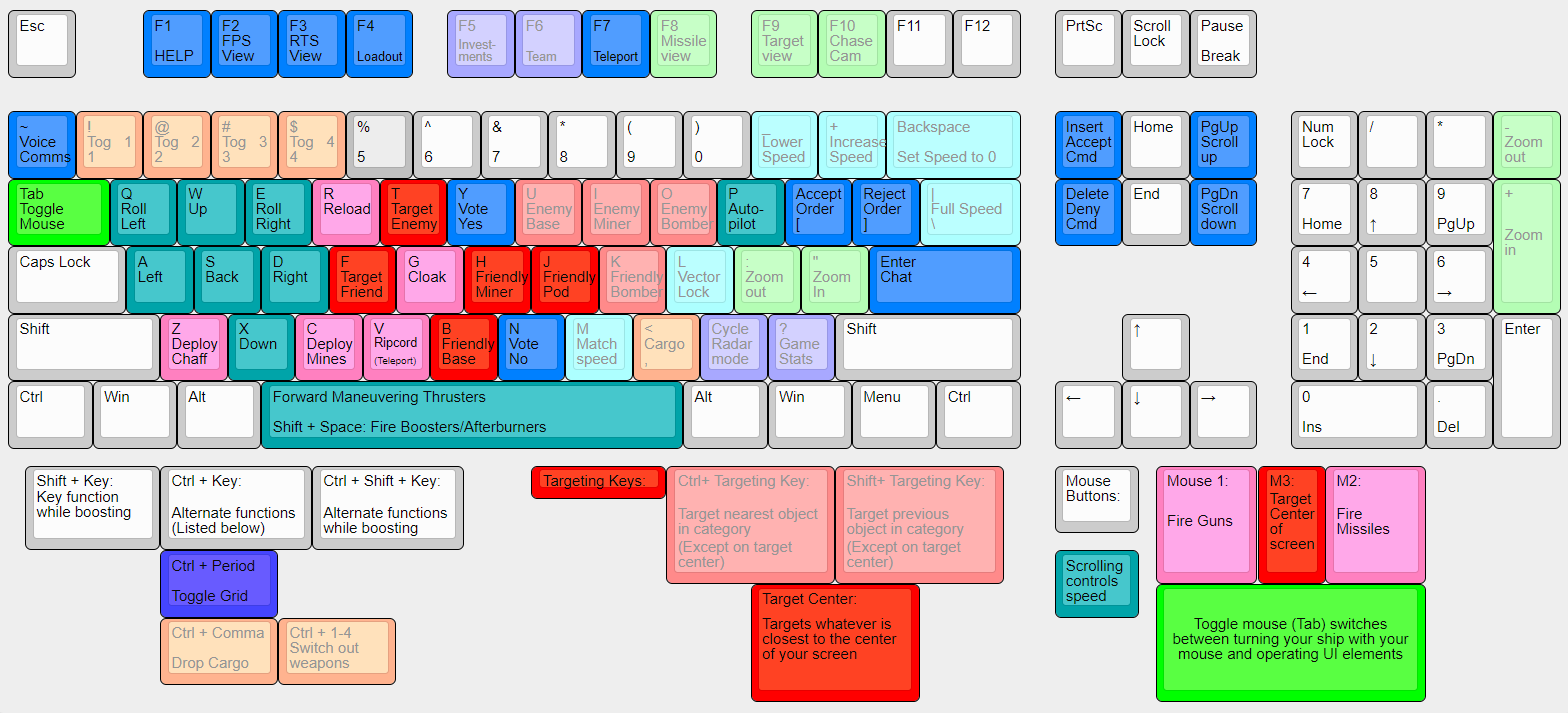
Tip: A complete overview of all the keys can be found here. or by pressing F1 in game.
The HUD

The labeled bars give information about:
- Thrust - controlled with your mousewheel
- Ammo
- Fuel - used in boosters
- Energy - used for some weapons and cloaking
- Shield - regenerating hitpoints
- Armor - hitpoints
Note In a scout you don't usually have to worry about fuel or energy.
The ship's current speed is displayed in the lower center.
Notice the white brackets { }, which are usually in the center of your screen. This is the motion indicator, telling you the direction your ship moves in. If you make a sharp turn or perform other maneuvers, it can vary greatly from the direction your ship is facing.
If you lock a target, it will have square brackets around it. There is an arrow pointing towards it, allowing you to turn towards your target, even if it is not in your field of view.
Tip: If you have a waypoint set, there will be two arrows: A green one pointing to the waypoint, and a red one pointing to the target.
The Minimap

At the bottom left of your screen there should be a little map that looks like the one on the right. If it is not there, hit F7 to bring it up. This is a map of the game universe. The circles represent different sectors - areas of space with asteroids, helium, and players. The lines indicate wormholes (also called "alephs") that connect the sectors. The different colours and icons displayed on the map tell players more information, such as who has a base in the sector, what type of friendly ships and (visible) enemies are there, etc.
The sector you are in is marked with a yellow triangle above it. You can hover your mouse over the map to get information about the other sectors (toggle mouse control with Tab).
There are lots of symbols that can appear on the minimap. Here are a few of the most important ones:
| Tech Base |  
|
| Outpost | 
|
| Teleport receiver | 
|
| Constructor (builds on an asteroid) |   
|
| Miner | 
|
| Bomber | 
|
| Escape pod (ejected pilot) | 
|
How to Move Around the Map
To get from one sector to another, there are several methods:
- Fly there: The normal way of getting around, especially when scouting. Fly into an aleph and you will be spat out on the other side.
Note Clicking on a sector on the minimap will enable the autopilot to move there. It can be disabled by pressing any movement key and toggled with P.
- Teleport there: If there is a teleport receiver
 in the sector, you can click on the sector in the minimap to teleport (aka ripcord) there.
 - Dock and transfer there: If flying there takes too long and there's a base but no teleport receiver in the sector, then the smartest thing to do is to dock at the closest base and use the teleport console F7 to transfer to the sector.
- The minimap will show up, along with a list of bases and their location.
- You can either select the base you want and transfer, or click on the sector on the minimap. Using the minimap is faster, but if there is more than one base you may end up in the wrong one.

The Command View
Pressing F3 will open a top-down view of the current sector. This view is good to get an overview of the situation and plan a route.
You can set a waypoint for yourself, by right clicking a spot. The autopilot will enable and move there.
Note You can set the waypoint at a different height, by holding the right mouse button and moving the mouse before releasing it.
Tip: Select other units with a click or a dragged box. Now you can send chat just to them, or set them waypoints/orders with a right-click. If other people give you orders, you can accept them with Insert.
Tip: When in base you can look at any sector by clicking it on the minimap.
Controls: Zoom with your mousewheel, move the view by moving the mouse to the edges.
Helping your team
Probing
One way to immediately be useful to your team is to deploy sensor probes (Early Warning System, or EWS probes) using your scout. Without probes in enemy-held or neutral sectors, you won't be able to see the enemy and know what's going on. The enemy will be able to build bases, mine freely, and organize giant bomb runs without your team's knowledge.
Despite the fact that "probing wins games", it seems few players can be bothered to do this simple task. Taking over the responsibility will mean your efforts have an immediate impact on your team.
You can load probes whenever you are in base. Return to the F4 loadout screen:


Locate the dispensor slot on the right-hand side and make sure it contains a probe. Then locate the cargo area a bit further down. Fill all slots with probes. Then launch and head out to your destination.
Tip: You can save a ship loadout by pressing Ctrl-1 and restore it quickly with 1. Other number keys work too.
Places that should be probed are:
- The sectors around your tech bases, so your team gets early notice of an incoming bomber. Place probes near the path the bomber is likely to take. For example, if there is an enemy teleport receiver in the sector, probe near the path from it to the aleph leading to your tech base. If they can come from multiple directions, just place probes around your aleph, or, if time allows, probe them all.
- The helium asteroids (He-3), to which enemy miners might come to mine. This will allow your team to send fighters or interceptors to destroy the miners, once they are spotted at those rocks.
Bombers and miners can be detected by your probes from a distance of about 900m. Ideally you place them at that maximum distance, so they are hard to find.
Press C to drop each probe.
Tip: - Always drop probes in enemy or neutral sectors. You don't need probes to see what's going on in friendly sectors — your bases do that job well enough for you already.
- Don't put probes directly in high-traffic areas: the enemy will spot them and destroy them.
- Probes have a very low scan range — about 500m or so. However, their "job" is to spot large and "noisy" ships, such as bombers. They can do this if placed about 900m or so from where you expect bombers to travel.
- Scouting is a high-mortality mission. If you see an enemy closing in on you, your best bet is to ripcord (teleport) out. Do this by clicking on the minimap on a sector that contains a teleport receiver.
- Don't stray too far from base! If you do get podded, it may be a long, long walk home.
Repairing Ships
Scouts are almost the only ship that can repair others. By repairing other ships when they come under attack a scout can greatly increase their lifespan, making them much more likely to succeed. Normally you escort bombers entering enemy sectors, or constructors and miners as they move around the map.
Let's say you're flying around, when all of a sudden you hear voicechats such as "need scouts" and "defend bombers". You check the chatlog and see that your commander has ordered the team to bomb a nearby enemy base. Now is the time to spring into action!
Here's how you can help the bomb run:
First, get to the nearest base and dock your ship. Immediately. Time is of the essence with a bomb run; you may only have 30 seconds or so to get in the right area before the opportunity is lost. As you are flying home, read the chat carefully to determine where the bomber will launch at (or if it has already launched scan the minimap for the bomber icon ). When you are docked in base, use the teleport console F7 to transfer to the sector where the bomb run will start from.
Warning! Don't try to fly across the map to get to where the bomber is. Dock at the closest base and use the teleport console F7 to transfer bases instead.


Next, use the F4 key to go to the loadout screen, where you will load up your cargo with proximity mines ("prox"). Finally, put one nanite repair gun ("nan") in cargo. You can use the prox to kill enemies, that get too close, and the nan to repair friendly ships.
Now launch! After launching, you can use Ctrl-1 to swap your normal gun with the nanite repair gun that is in cargo.
Note Scouts of one particular faction - the Ga'Taraan Federation - have a permanently mounted nanite repair gun. If you are ever flying a GT scout, use 1 to enable the regular gattling gun and 2 to enable the nanite repair gun. There is no need to carry a spare nan in cargo.
Now all you have to do is find the bomber and fly towards it. Stick with it like glue! You will want to be around 200m away from it at all times. Targeting the bomber with K and matching its speed with M may help, but moving at the same speed as the slow bomber will make you easy to kill.
Tip: You can make the bomber fly faster by ramming your scout into it from behind. Not recommended near alephs, or with team-damage on.
When the bomber starts taking damage, start shooting your nan at it. Meanwhile, you should also drop proximity mines with C whenever enemies are around. Mines generate a field of 100m in radius which damage any enemy ship flying through it — and the faster the enemy flies through it, the more damage it delivers! Mines do not damage friendly ships. Even if you don't get any kills, you will definitely slow the enemy down.
Note The nan can not repair shields (the top health bar). Save your shots for when the shields are low.
Tip: If you are carrying both prox mines and probes, use Ctrl-0 to switch between them.
Momma didn't raise no fools on the enemy's team, however. Savvy players know there's no sense attacking a bomber when there are scouts ready to repair it. Instead, they'll start shooting at YOU. The life of a bomber nan is nasty, brutish, and short. But if it keeps the bomber alive even five extra seconds, it's often quite worth it. When you see through the grungy window of your pod the enemy base exploding in a ball of flame, you can take pride that it couldn't have happened without your help.
Note When the tables are turned and you're defending against an enemy bomber, you should be a savvy player and shoot the enemy nans, not the bomber!
Tip: Sitting with your team's miners and defending them when attacked works very much the same way as defending bombers, and is every bit as helpful to the team.
Tip: The training mission "7. Support Role I (Nanning)" is all about this.
Exploration
When a game starts, each team only knows their home sector. All other sectors have yet to be discovered. Exploring those sectors quickly, allows your commander to make a good decision on what to build where.
Note As a loadout for exploring, you want to bring a nan to repair constructors. The rest of the slots, you can fill with probes, dumbfire missiles to attack enemy constructors/miners and, possibly prox.
Choose one of the alephs leading to unknown space. Ideally you check for other scouts in the command view F3 so you are evenly spread out.
Once you are in a new sector, the task is to find the other alephs. They tend to be arranged in geometric shapes. If there are three alephs in a sector, they will be arranged in a rough triangle. If there are four alephs, they will be arranged in a rectangle. And so on. Therefore you want to look at the map configuration before the match starts and remember the aleph counts. It can still be hard to find them, as it is not an exact science.
Tip: Killing a constructor with a scout is quite hard to do. Best ask for help when you find one with the voice command ~→A→C. You can delay the constructor from building, by ramming its nose or tail when it tries to line up with an asteroid.
Picking up Tech and Cashboxes
Sometimes there are pieces of technology floating out in space:  . If you pick up this tech and bring it home, your entire team can start using it, if you have the required bases.
Not all tech is very useful, however. When a piece of tech is far out of your way, ask your team first if it is worth picking up.
. If you pick up this tech and bring it home, your entire team can start using it, if you have the required bases.
Not all tech is very useful, however. When a piece of tech is far out of your way, ask your team first if it is worth picking up.
In order to pick up tech, you need to have empty cargo space. You can see your ship's equipment and cargo in the bottom right (unless it has been toggled off with F4). Below the numbered equipment is your cargo. If you don't see an empty slot, use , to cycle through your cargo, and Ctrl-, to eject an item. Alternatively, dropping a prox mine or probe will open up a cargo slot.
Another symbol you will see floating in space is the cashbox:  . Picking this up, gives your commander $500 more to invest with. Be sure to pick up cashboxes if you see them on your route.
Note The powerup:  repairs your hull and replenish your ammo and fuel bars.

Rescuing pilots
Even the best pilots will be forced to eject at times. The journey back in an escape pod: takes the pilot out of the fight for quite a while.
Picking them up will send them back to base and allow them to launch another ship. So, if you see a pod and aren't getting shot at, tell them to come to you. To do this, select them in the command view F3 and send them the voice command ~→C→S. (You can also send the voice command without selecting anyone, but that broadcasts it to the whole team and other pods might be confused.) Then fly towards them without turning too much, so you can meet up.
Tip: If there are several pilots stranded far from your bases, it may be a good idea to launch a ship just to rescue them.
Tip: Destroying an enemy pod, lowers their damage, but also sends them back to base immediately. So usually you don't want to do this.
What's Next
With this introduction, you have the ability to be a great support for your team and help win games! If anything didn't make sense, please join us on Discord and ask.
There is still much to learn. Allegiance is a very complex game, with a steep learning curve.
- Get in touch with the community on Discord for help, voice chat, and more.
- Learn how to fight!
- Watch other people do it in our training videos.
- Sign up for Allegiance Flight School, a structured course for new players.
- Learn about the five techpaths, each of which leads to a different way of winning the game.
- Learn more about the nine main factions in Allegiance, each of which has its own unique characteristics.
- Learn about all the different types of ship you can fly in Allegiance.
- Want to feel less of a noob? Check out this page on common mistakes.
- The default keyboard controls may not be for you — here's how you can change your key bindings.
Note Reference this page quickly with http://tinyurl.com/AllegQCC!