Quick Crash Course: Difference between revisions
(→Your First Ship: The Scout: - Old configs, etc.) |
m (→The Minimap: - spelling) |
||
| Line 70: | Line 70: | ||
[[Image:Minimap.jpg|right]] | [[Image:Minimap.jpg|right]] | ||
[[Image:Minimap_naming.png|thumb|right|Sector names for HiHigher, one of the more commonly played maps.]] | [[Image:Minimap_naming.png|thumb|right|Sector names for HiHigher, one of the more commonly played maps.]] | ||
At the bottom left of your screen there should be a little map that looks | At the bottom left of your screen there should be a little map that looks like the one on the right. If it is not there, hit {{k|F7}} to bring it up. The yellow triangle indicates which sector you are in. There are lots of different symbols, and you can get more by hovering your mouse over the map for more info (toggle mouse control with {{k|Tab}}) | ||
This is a map of the game universe. The circles represent different sectors, areas of space with asteroids, helium, and players. The lines indicate wormholes that join the sectors (wormholes are called "alephs" in-game). The different colours and icons displayed on the map tell players more information, such as who has a base in the sector, what type of friendly ships and (visible) enemies are there, etc. | This is a map of the game universe. The circles represent different sectors, areas of space with asteroids, helium, and players. The lines indicate wormholes that join the sectors (wormholes are called "alephs" in-game). The different colours and icons displayed on the map tell players more information, such as who has a base in the sector, what type of friendly ships and (visible) enemies are there, etc. | ||
Revision as of 19:53, 17 October 2017
Welcome to the best game you've never played!
Allegiance is a team-based strategy game set in space, with players piloting the spacecraft. It's like playing, say, StarCraft, except that every individual unit is controlled by a real human player.
Games usually take between 30 minutes to an hour.
Objective of the Game

The objective of the game is simple: destroy (or capture) all enemy tech bases.
To accomplish this you must first expand across the map with your own bases while at the same time researching superior weapons and technology to overwhelm the enemy. Both of these tasks require money, which is generated by special non-player ships called miners harvesting a resource called "Helium 3" (or He3) from asteroids. Much of the game revolves around finding and destroying enemy miners and protecting your own.

Each team is led by a commander. He receives all the money generated by miners and is in charge of buying bases and technology, as well as coordinating the team around specific objectives. Most small-class ships are free and you can fly them as much as you like, but some of the more mission-critical ones are not. To pilot these ships, you must request money from the commander and he may deny that request if, for example, he is saving to buy something else, wants a more skilled player to fly it, or doesn't believe that ship will be effective at this stage of the game.
Joining in
Joining a Team
When you log on to Allegiance, there may already be a game going. If the upper right hand corner displays "Time elapsed" along with a counter, the game is already underway! All you have to do is join a team.
But which team should you join? Take a look at each team's tab. They will look something like this:

What this means is that there are 6 people out of a possible 100 on Team 2, which is fighting for the Iron Coalition faction. Every player has a rank from 0 to 25 and the [17] is the total rank of all the players on the team.
As a new player, you want to join the team with the higher total rank to keep both sides as balanced as possible. If your name is blinking in the player list, it means the commander still has to accept you into his team.
Sometimes you may log on to Allegiance and there will be lots of people in the lobby, but no game going. Please be patient! This can sometimes be frustrating for new players, but it's probably just that people need to take a short break from the previous game. There is usually some downtime between games as players want to discuss the previous game, get a snack, change teams, etc.
How to Communicate

To talk to your teammates begin by pressing Enter. This brings up a dialog window with two boxes. The one on the left indicates who will receive your message (such as 'Team 1', 'Command', 'All') and the one on the right is where you type your message. To change the recipient of your message, press Tab.

Tip: To send a private message to someone, type the first few letters of their name, followed by Tab.

You can also send short radio messages via the Voice Chat menu, which is accessed via the ~ key.
Through the course of the game you will frequently see the commander (or sometimes other players) issuing you orders in bright red text which can be "accepted" with the INS key. You can safely ignore most of these orders for the time being because the vast majority are not for you, but for your teammates in distant sectors. Once you get more accustomed to the game these orders will be very important for team coordination — but since you are new, don't worry about them right now.
Tip: You can scroll the chat by pressing Page Up and Page Down
What, where, and how to fly around
Your First Ship: The Scout

The scout is an excellent beginner ship. Scouts are very fast and have excellent sensors which allow you to spot most enemies coming towards you. Scouts have low hp and won't last long in a dogfight — but that's okay. It takes a while to learn good dogfighting techniques in Allegiance and you should try to avoid or escape conflict as a new player.
How to choose a scout? Once you're on a team and the game has started, you will see the station interior. Open the "Ship's loadout" menu by clicking the console for it, or pressing F4. Here you can use the drop-down menu to select the scout. Hit the launch button and away you go!

Note The scout default loadout has 3 spare racks of ammo. You don't need all of them, and it would be better to swap for missiles or sensor probes.


Warning! The game has two mouse modes. If your cursor is visible, you can use it to check the minimap and the like. Hit Tab to toggle the mouse mode and control your ship.

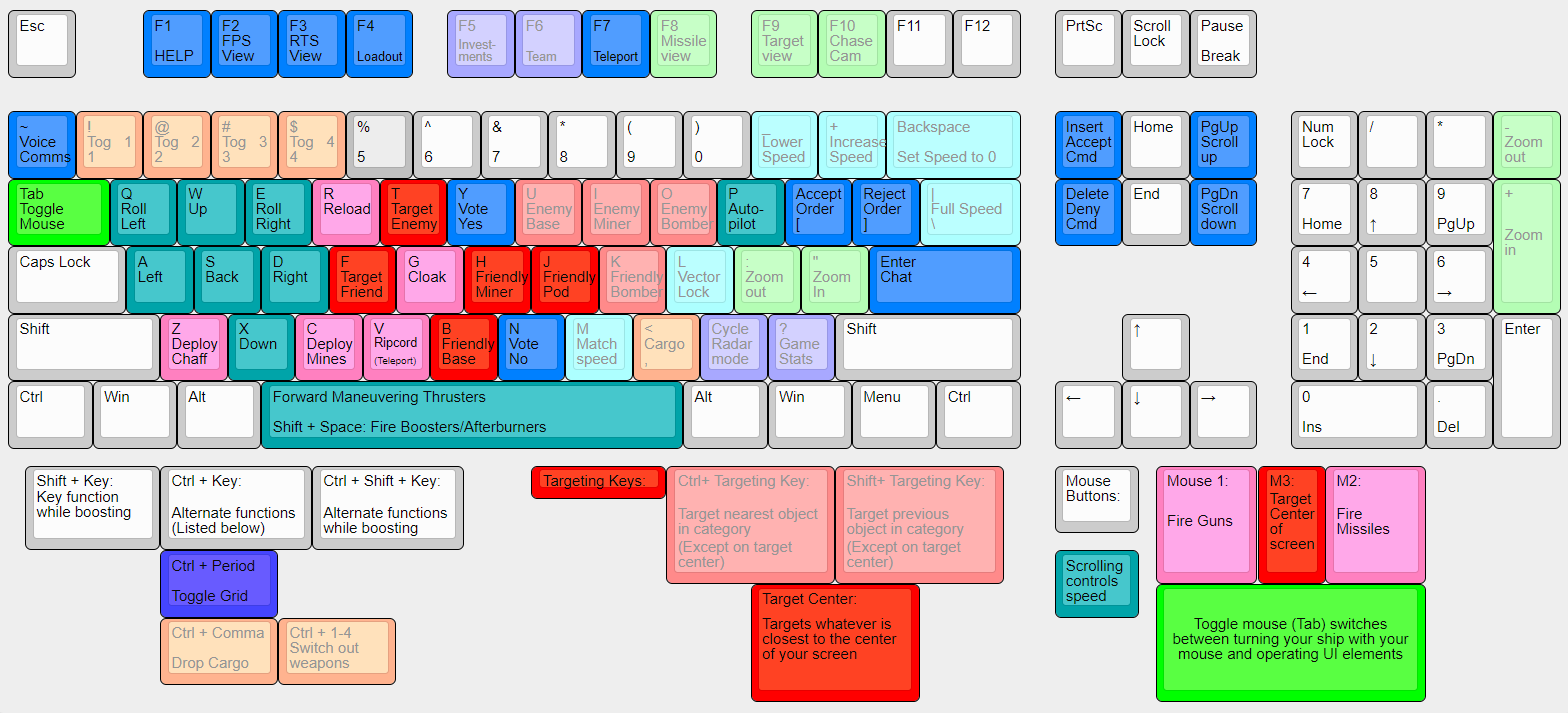
| Basic controls: |
| Toggle mouse control | Tab |
| Set speed | Mousewheel up/down |
| Fire gun | Left mouse button |
| Fire missile | Right mouse button |
| Target enemy | T |
| Deploy sensor probe | C |
Warning! Your controls may be set up differently. If the commands above don't seem to work, check in the menu Esc -> Game G -> Map Keys and Controls C
The Minimap


At the bottom left of your screen there should be a little map that looks like the one on the right. If it is not there, hit F7 to bring it up. The yellow triangle indicates which sector you are in. There are lots of different symbols, and you can get more by hovering your mouse over the map for more info (toggle mouse control with Tab)
This is a map of the game universe. The circles represent different sectors, areas of space with asteroids, helium, and players. The lines indicate wormholes that join the sectors (wormholes are called "alephs" in-game). The different colours and icons displayed on the map tell players more information, such as who has a base in the sector, what type of friendly ships and (visible) enemies are there, etc.
At the beginning of each game the asteroids, alephs, and even the sector names are randomly generated. This means that game strategies normally revolve around securing key sectors with useful alephs, rather than any area within a single sector. To help coordinate attacks and defence quickly, veterans refer to sectors by where they appear on the minimap. For example "High" refers to the top of the map, "Left" as ones on the left, "Home" as the sector your first base started in, etc.
At the beginning of the game, the map is undiscovered: teams can only see their home sector and adjoining sectors. The earliest part of the game is scouting the map and securing a sector for your first post. This usually only takes a few minutes since most maps are small and the number of scout pilots are many. Alephs are often found in predictable locations, usually regular triangles or squares arranged around the center of the sector.
Tip: To see how alephs are arranged in the sector, use F3. You can do a lot of things from this screen, such as giving yourself or your teammates waypoints to fly to.
There are lots of symbols that can appear on the minimap. Here are a few of the most important ones:
| Base |  
|
| Teleport receiver (a.k.a., "ripcord") | 
|
| Constructor (a non-player ship that builds a base on an asteroid) |   
|
| Miner | 
|
| Bomber | 
|
| Eject pod (stranded pilot) | 
|
How to Move Around the Map
What do you do when you're in one sector and you want to be in another?
- Fly there: the slowest method, but sometimes there is no alternative!
- Teleport there: if there is a teleport receiver
 in the sector, you can click on the sector in the minimap to ripcord there.
 - Dock and transfer there: if flying there takes too long and there's a base but no teleport receiver in the sector, then the smartest thing to do is to dock at the closest base and use the teleport console (F8) to transfer to the sector.
- The minimap will show up, along with a list of bases and their location.
- You can either select the base you want and transfer, or click on the sector on the minimap. Using the minimap is faster, but if there is more than one base you may end up in the wrong one.
Helping your team
How to Probe
One way to immediately be useful to your team is to deploy sensor probes (Early Warning System, or EWS probes) using your scout. Without probes in enemy-held or neutral sectors, you won't be able to see the enemy and know what's going on. The enemy will be able to build bases, mine freely, and organize giant bomb runs without your team's knowledge.
Despite the fact that "probing wins games", it seems few players can be bothered to do this simple task. Taking over the responsibility will mean your efforts have an immediate impact on your team.
You can load probes whenever you are in base. Return to the F4 loadout screen:


Locate the dispensor slot on the right-hand side and make sure it contains a probe. Then locate the cargo area a bit further down. Fill all slots with probes. Then launch and head out to your destination.
Once you arrive, press C to drop each probe.
Tip: - Always drop probes in enemy or neutral sectors. You don't need probes to see what's going on in friendly sectors — your bases do that job well enough for you already.
- Put probes next to high-traffic areas: alephs and helium asteriods especially.
- Don't put probes directly in high-traffic areas: the enemy will spot them and destroy them.
- Probes have a very low scan range — about 500m or so. However, their "job" is to spot large and "noisy" ships, such as bombers. They can do this if placed about 900m or so from where you expect bombers to travel.
- Scouting is a high-mortality mission. If you see an enemy closing in on you, your best bet is to ripcord (teleport) out. Do this by clicking on the minimap on a sector that contains a teleport receiver.
- Don't stray too far from base! If you do get podded, it may be a long, long walk home.
How to Repair Ships
Scouts are almost the only ship that can repair others. By repairing other ships when they come under attack a scout can greatly increase their lifespan, making them much more likely to succeed. Normally you escort bombers entering enemy sectors, or constructors and miners as they move around the map.
Let's say you're flying around, when all of a sudden you hear voicechats such as "need scouts" and "defend bombers". You check the chatlog and see that your commander has ordered the team to bomb a nearby enemy base. Now is the time to spring into action!
Here's how you can help the bomb run:
First, get to the nearest base and dock your ship. Immediately. Time is of the essence with a bomb run; you may only have 30 seconds or so to get in the right area before the opportunity is lost. As you are flying home, read the chat carefully to determine where the bomber will launch at (or if it has already launched scan the minimap for the bomber icon ). When you are docked in base, use the F8 key to transfer to the sector where the bomb run will start from.
Warning! Don't try to fly across the map to get to where the bomber is. That takes forever! Dock at the closest base and use F8 to transfer bases instead.


Next, use the F4 key to go to the loadout screen, where you will load up your cargo with proximity mines ("prox"). Finally, put one nanite repair gun ("nan") in cargo. You use the prox to kill enemies, and the nan to repair friendlies. Simple, eh?
Now launch! After launching, you can use Ctrl-1 to swap your normal gun with the nanite repair gun that is in cargo.
Note Scouts of one particular faction - the Ga'Taraan Federation - have a permanently mounted nanite repair gun. If you are ever flying a GT scout, use 1 to enable the regular gattling gun and 2 to enable the nanite repair gun. There is no need to carry a spare nan in cargo.
Now all you have to do is find the bomber and fly towards it. Stick with it like glue! You will want to be around 200m away from it at all times. Targeting the bomber with K and matching its speed with M may help, but moving at the same speed as the slow bomber will make you easy to kill.
Tip: You can make the bomber fly faster by ramming your scout into it from behind. Not recommended near alephs, or with team-damage on.
When the bomber starts taking damage, start shooting your nan at it. Meanwhile, you should also drop proximity mines with C whenever enemies are around. Mines generate a field of 100m in radius which damage any enemy ship flying through it — and the faster the enemy flies through it, the more damage it delivers! Mines do not damage friendly ships. Even if you don't get any kills, you will definitely slow the enemy down.
Note The nan can not repair shields (the top health bar). Save your shots for when the shields are low.
Tip: If you are carrying both prox mines and probes, use Ctrl-C to switch between them.
Momma didn't raise no fools on the enemy's team, however. Savvy players know there's no sense attacking a bomber when there are scouts ready to repair it. Instead, they'll start shooting at YOU. The life of a bomber nan is nasty, brutish, and short. But if it keeps the bomber alive even five extra seconds, it's often quite worth it. When you see through the grungy window of your pod the enemy base exploding in a ball of flame, you can take pride that it couldn't have happened without your help.
Note When the tables are turned and you're defending against an enemy bomber, you should be a savvy player and shoot the enemy nans, not the bomber!
Tip: Sitting with your team's miners and defending them when attacked works very much the same way as defending bombers, and is every bit as helpful to the team.
How to Pick up Tech and Cashboxes
Sometimes there are pieces of technology floating out in space:  . If you pick up this tech and bring it home, sometimes your entire team can start using it, for free!
Not all tech is very useful, however. When a piece of tech is far out of your way, ask your team first if it is worth picking up.
. If you pick up this tech and bring it home, sometimes your entire team can start using it, for free!
Not all tech is very useful, however. When a piece of tech is far out of your way, ask your team first if it is worth picking up.
In order to pick up tech, you need to have empty cargo space. You can see your ship's equipment and cargo in the bottom right (unless it has been toggled off with F4). Below the numbered equipment is your cargo. If you don't see an empty slot, use , to cycle through your cargo, and Ctrl-, to eject an item. Alternatively, dropping a prox mine or probe may open up a cargo slot. Once you have returned it home, your discovery will be announced to the whole team, and the tech may also now be available for everyone on your team to use.
Another symbol you will see floating in space is the cashbox:  . Unlike tech, you don't need extra cargo space nor do you need to dock it at home. All you have to do is run it over. This gives your commander $500 more to invest with - it's not much, but every little bit helps. Be sure to pick up cashboxes if you see them on your route.
Also be sure to pick up friendly pods: . As your probably have figured out by now, getting podded is the punishment for not aiming very well or not running away fast enough. Pods are your teammates out of commission, unable to do anything but limp slowly back home. You can get them back in action quicker by picking them up. (For the same reason, you don't want to shoot enemy pods. This is a favor to them, sending them back home immediately.)
The one thing you usually shouldn't bother picking up is the powerup:  . These repair your hull and replenish your ammo and fuel — but if you already have full hull, ammo, and fuel, they do nothing.
What's Next
This simple introduction has just barely scratched the surface. Hopefully by now you know enough to not be totally lost while you're trying to figure out what's going on. Allegiance is a very complex game, with a steep learning curve. (But that's what makes it so fun! ;))
Here's some ways you can learn more:
- Get in touch with the community on Discord for help, voice chat, and more.
- Bored with scouting, nanning, and probing? Time to move on to the next step: learn how to kill miners!
- Watch other people do it in our training videos.
- Sign up for Allegiance Flight School, a structured course for new players.
- Learn about the five techpaths, each of which leads to a different way of winning the game.
- Learn more about the nine main factions in Allegiance, each of which has its own unique characteristics.
- Learn about all the different types of ship you can fly in Allegiance.
- Want to feel less of a noob? Check out this page on common mistakes.
- The default keyboard controls may not be for you — here's how you can change your key bindings.
Note Reference this page quickly with http://tinyurl.com/AllegQCC!